This website uses cookie or similar technologies, to enhance your browsing experience and provide personalised recommendations. By continuing to use our website, you agree to our privacy policy. You can adjust cookie preferences in Cookie Settings.

Here are some interesting topics related to Swar Performer. We'll keep adding valuable content to this section so it covers all of the functionality you may have missed otherwise from the various panes and dialogs. Stay tuned!
You just downloaded Swar Performer or its demo and want to make the most of it? Just bear with us a minute and go through the following steps to ensure the app is properly initialized.
Before you jump into creating content, it's also a good idea to get a clearer idea about the terms we'll be using in the software, and what they are about. We have tried to give a succint explanation here.
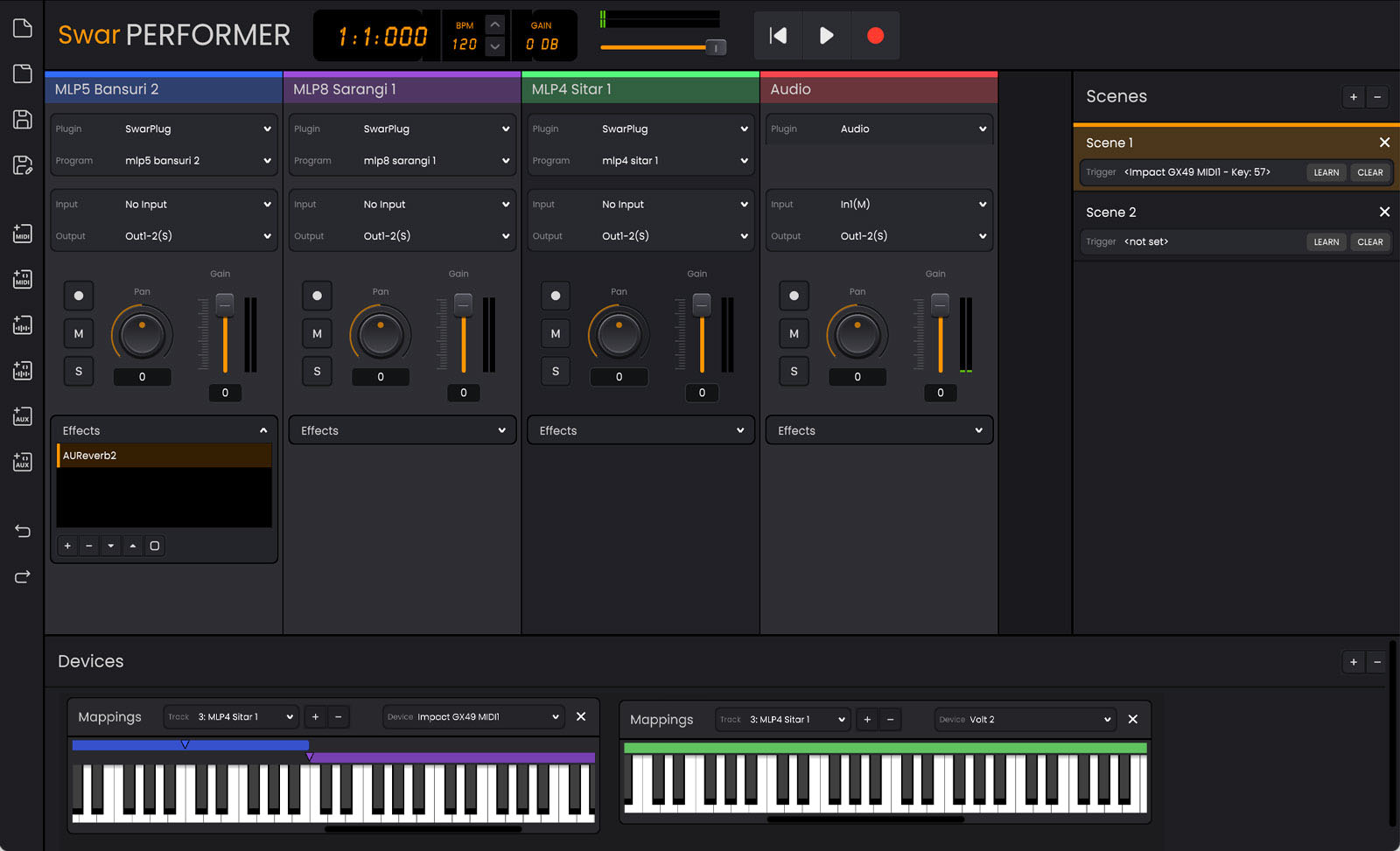
Swar Performer is a very versatile music software which can be used in many ways, depending on your needs. But we'll try to give you a basic idea on how to create your first session, and you can take it from there.
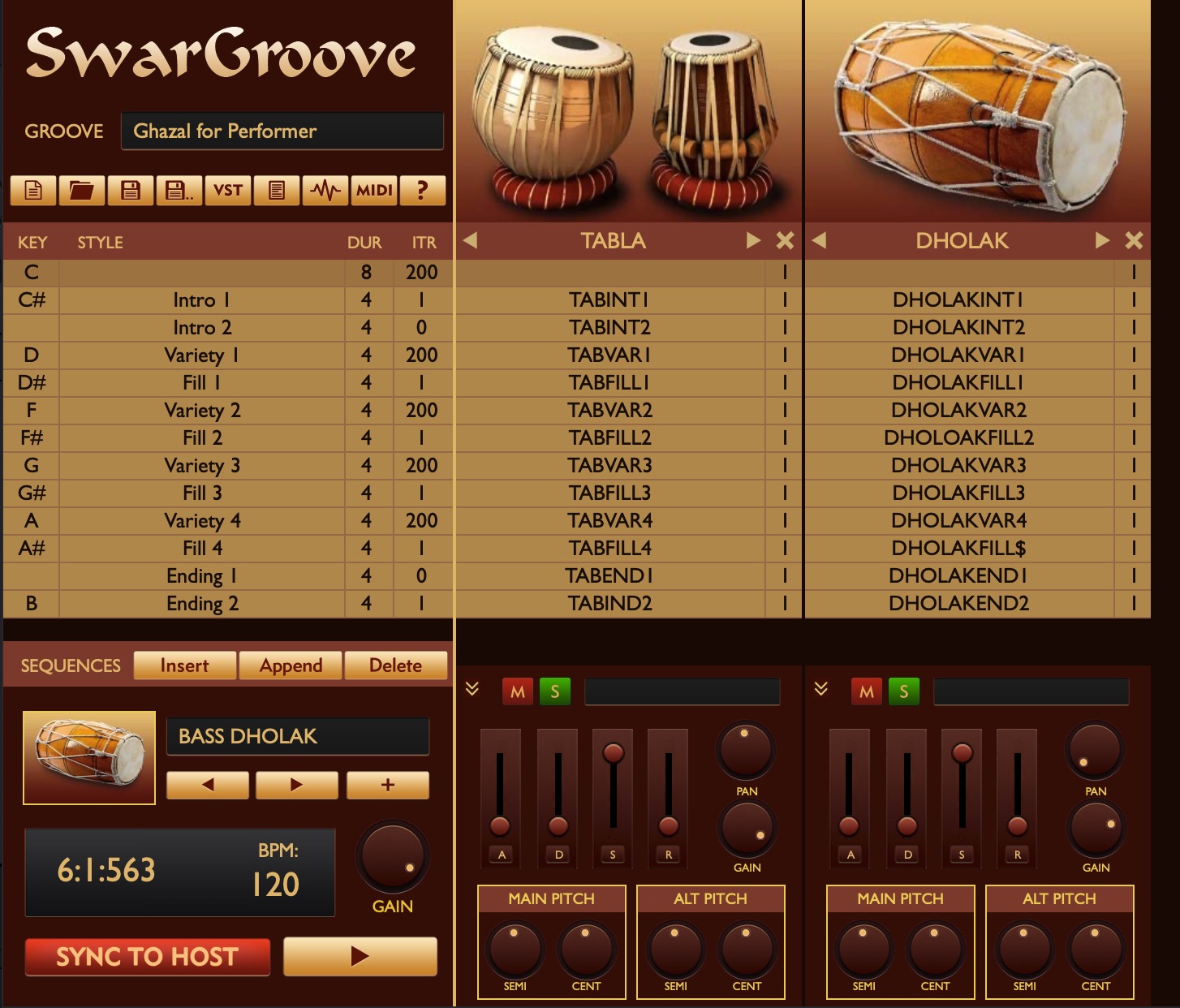
So far we have explained how to play virtual instruments live from your keyboard, but what if you need rhythmic accompaniment to play along? We'll show here how to configure SwarGroove to get live beats along with your melodic instruments.
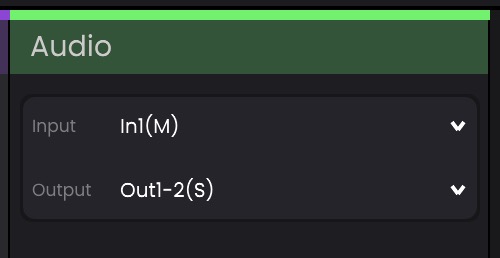
Swar Performer is tailored mainly for MIDI playback, but you can also include audio input to the mix if you like. This is done through the Audio tracks.
Add an audio track from the Tracks menu or the corresponding toolbar icon, select the input channel (be careful with the audio feedback!), add any effects, adjust gain and panning and you are good to go!
Often your gigs are too good to get wasted. Why not record them to replay them any time? This is very easy to do in Swar Performer.
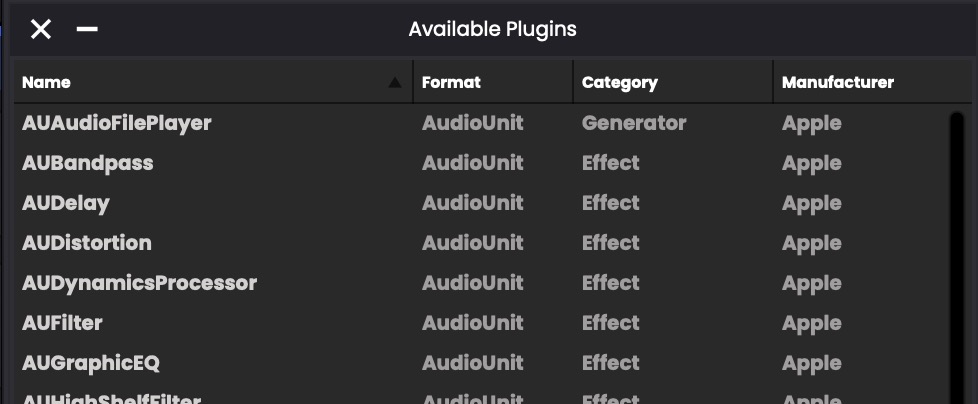
Scan third-party instruments and audio effects which can be loaded onto your tracks

Shape your sound by building your own effects chain for each track. Swar performer lets you host your favorite effects to get the best out of your sound.
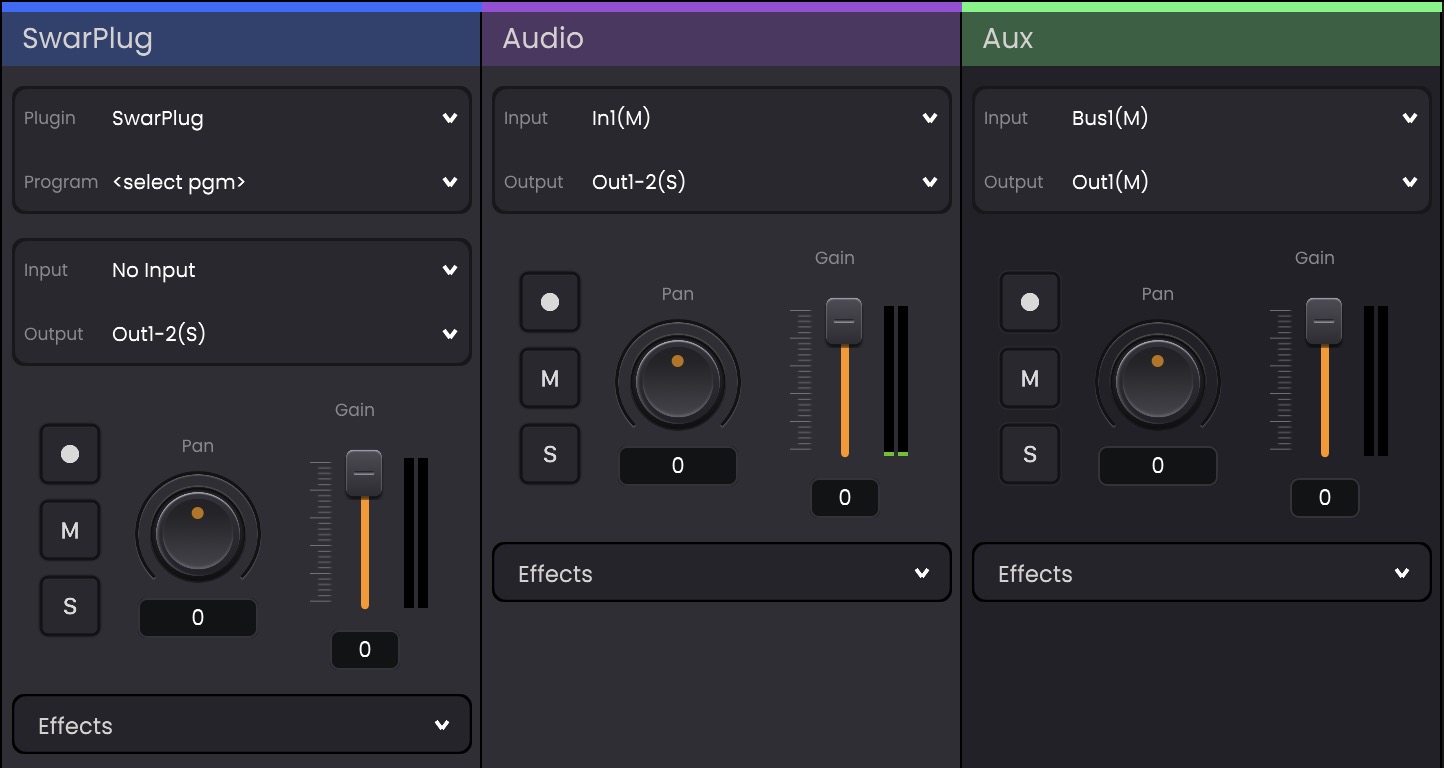
Tracks are the foundation of your project. They let you record, load instruments, process audio, and route signals in flexible ways. Devices in the Device Panel route midi events to tracks based on their corresponding Mappings
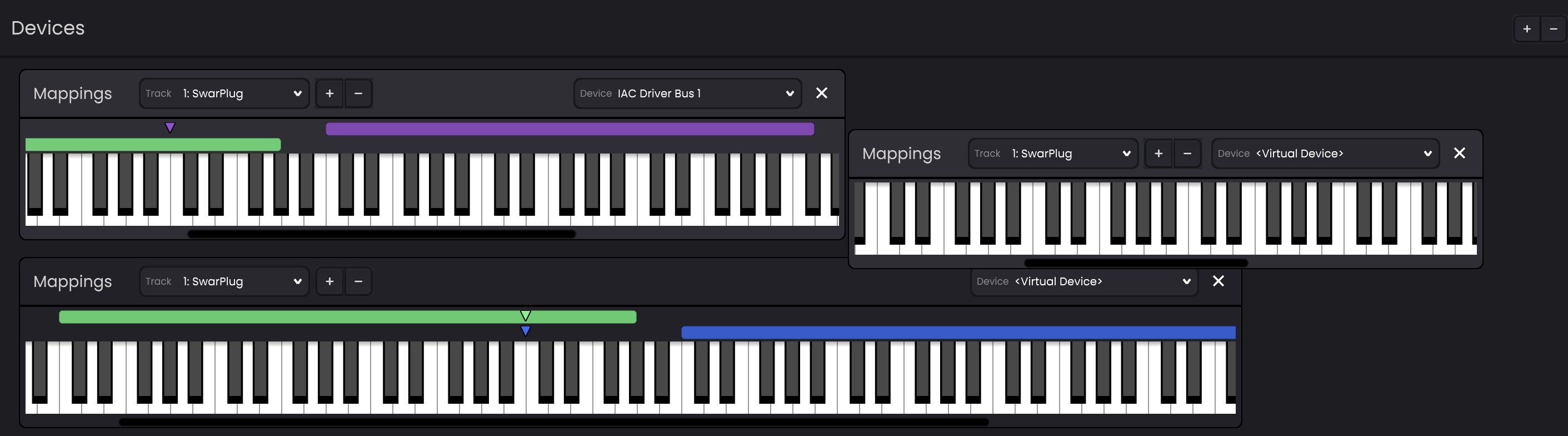
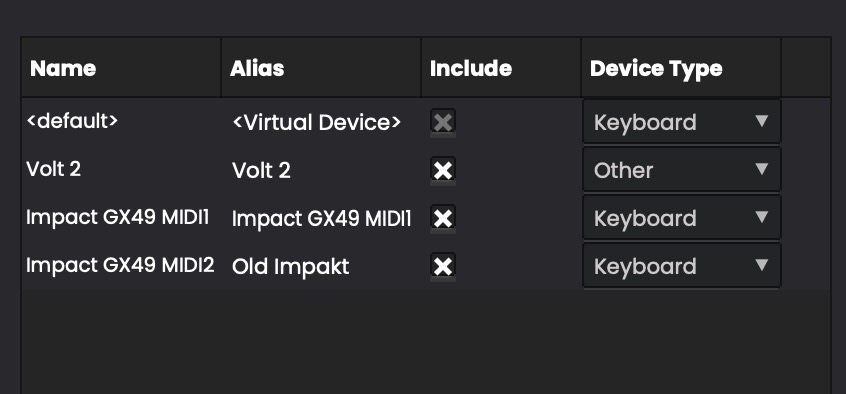
The Devices Panel is used to create, configure, and manage Performer Devices and their keyboard mappings. It allows you to connect MIDI devices, organize mappings, and control how MIDI notes are routed to tracks.
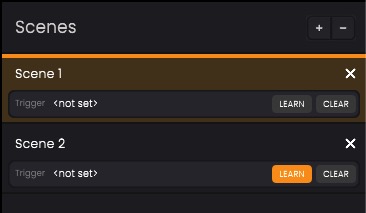
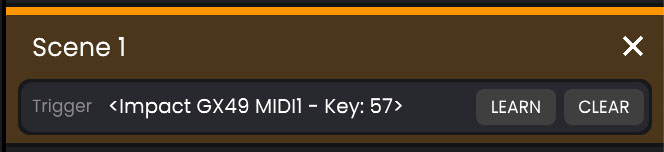
Mappings are specific to scenes, which means that changing scenes changes the way your keyboard(s) interact with tracks. You can change scenes by clicking on them, or by recording a specific key/button from your keyboard, and then pressing that. This gives you full freedom to change the instruments played on the fly during your performances.