
This website uses cookie or similar technologies, to enhance your browsing experience and provide personalised recommendations. By continuing to use our website, you agree to our privacy policy. You can adjust cookie preferences in Cookie Settings.


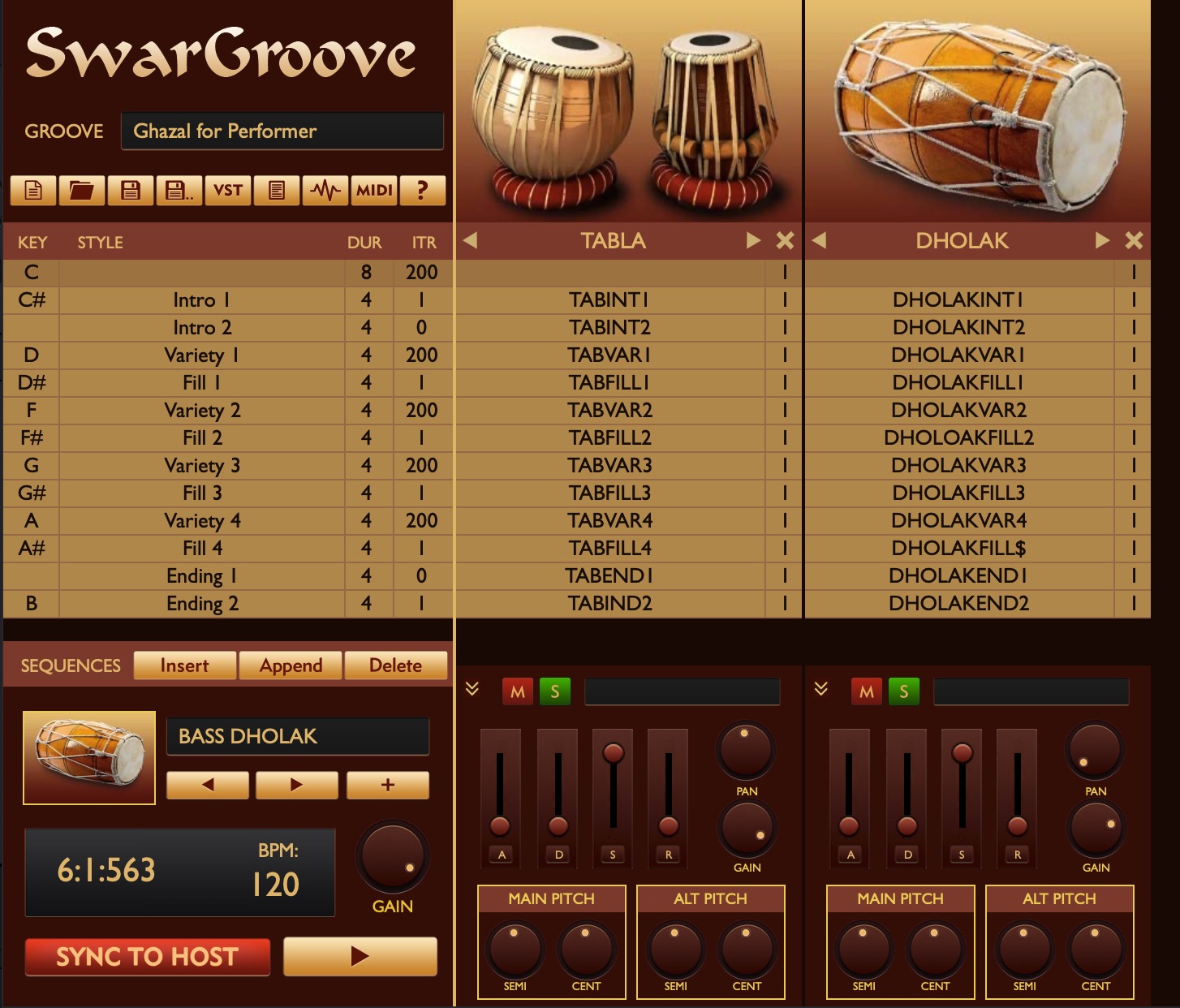
The first step is to create a track and assign it to SwarGroove. Once the track is created, click on the SwarGroove title to open its editor and select the groove you want to use.
Before proceeding further, you may want to customize the groove behavior.
Once this is done, click the Sync To Host button so the groove synchronizes with Swar Performer's play head.
Next, go to your device configuration and create a mapping for SwarGroove.
Resize the mapping to a single octave only, since more keys are not required, and place the mapped range at one end of your keyboard.
To verify that everything works correctly:
You can also adjust the BPM from the top toolbar to match the desired tempo.
Use Stop and Rewind to reset the play head when needed.
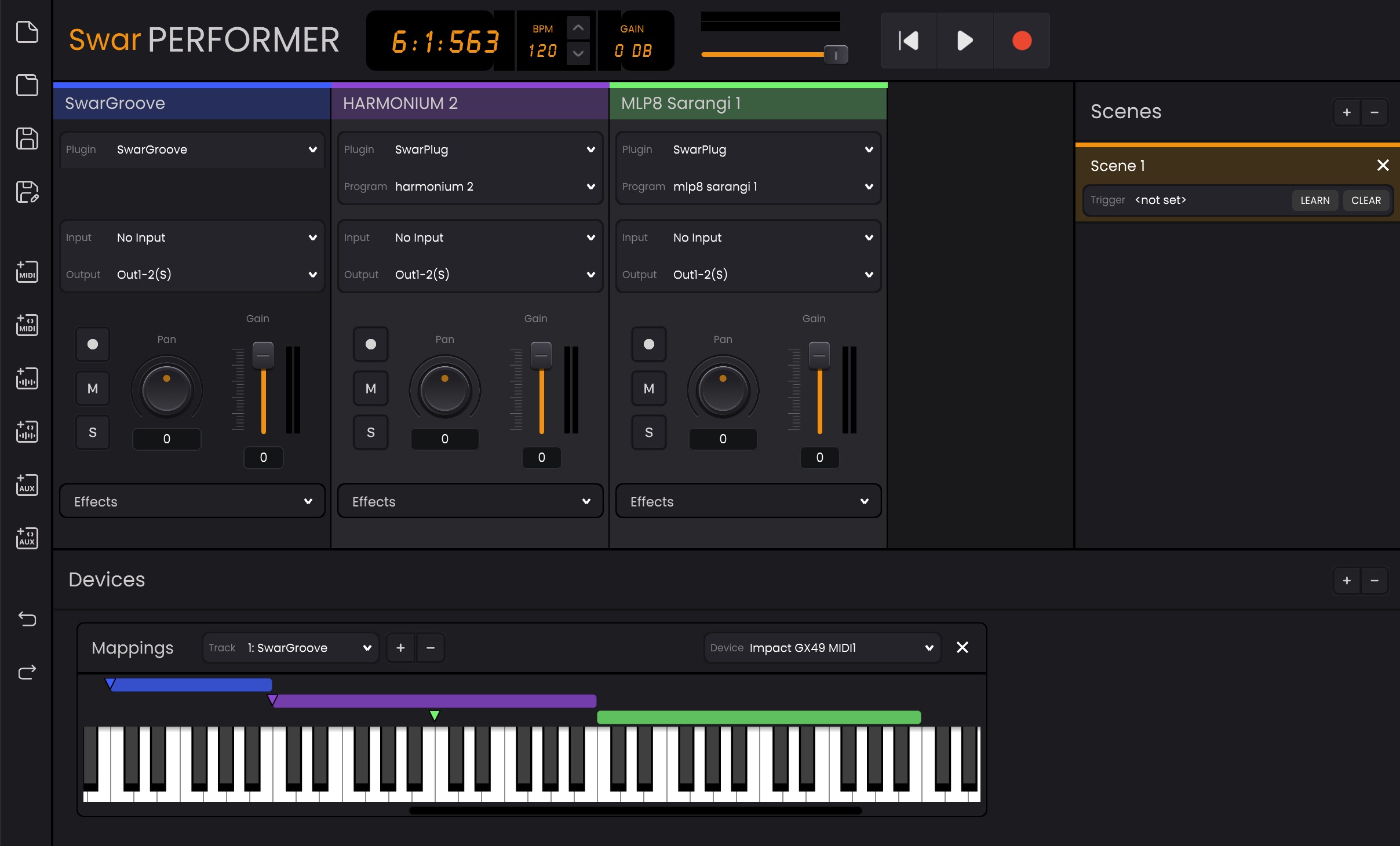
After configuring SwarGroove, you can add additional tracks for melodic instruments of your choice and create appropriate mappings for them.
You can now begin your performance by pressing Play and triggering loops or breaks within the SwarGroove mapped range, while simultaneously playing your melodic instruments using the remaining keys on the keyboard.